
Great products lose deals they should win — not because of quality, but because the right information wasn't in the right place at the right moment. A version buried in an email. Pricing that changed after the line sheet went out. A spec a buyer needed before they'd say yes.
Verai closes that gap. One product record powers everything you put in front of a buyer, and a single Brand Portal link keeps your catalog, pricing, certifications, and proof current automatically — no version hunting, no follow-up email required.
Verai works for every side of the relationship: makers and producers managing their brand's presence with buyers, and the brokers who represent them. Whether you're prepping for a trade show, following up after a buyer meeting, or opening a new door, Verai helps your brand show up as serious as the work behind it.
This guide walks through the core areas of Verai using a sample brand, Verai Beverage Co, so you can see exactly how each piece fits together before you set up your own.
Add your products
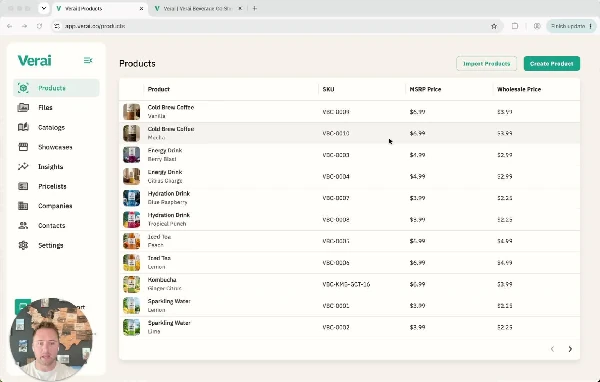
Everything in Verai starts with the Products page. Each row is a product record — title, SKU, MSRP, and wholesale price — and it's the single source of truth that feeds your catalogs, your Brand Portal, and every price list you generate. Update it once here, and it updates everywhere it's used.
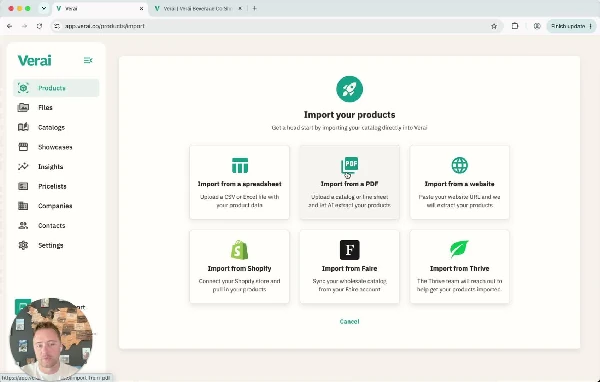
New to Verai? You don't have to enter products one at a time. The Import Products tool can pull your catalog in from a spreadsheet, a PDF line sheet (AI extracts the products for you), a website, Shopify, or Faire — or the Thrive team can import it for you.
Build out each product record
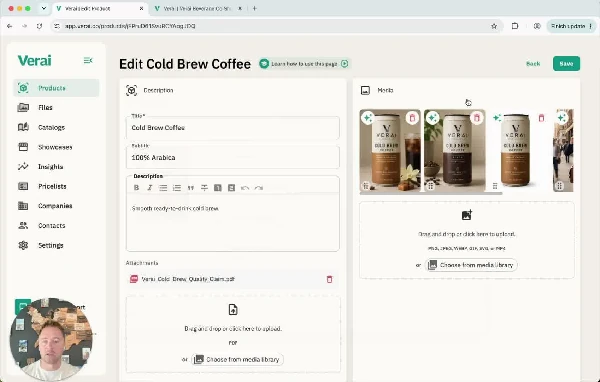
Click into any product to open its record. This is where a product becomes buyer-ready: a title and subtitle, a rich description, photos and lifestyle images, and any attachments a buyer might ask for — spec sheets, quality claims, certifications. Whatever you attach here is what shows up when you share the product, so there's no separate file to dig up when a buyer asks.
Keep your media in one library
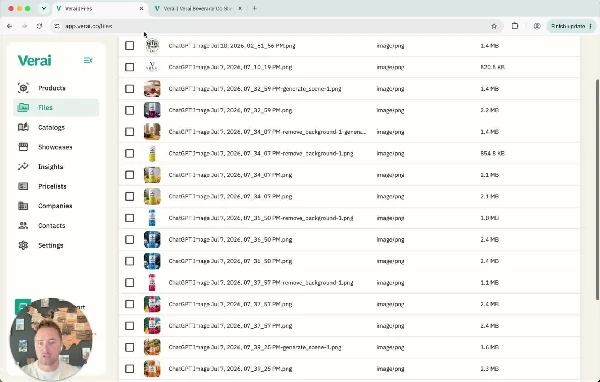
Every image and file you upload — product shots, logos, generated lifestyle photos — lands in Files. It's a shared library you can pull from anywhere in Verai, so you're never re-uploading the same asset twice or hunting through old email threads for the right version of a photo.
Group products into catalogs
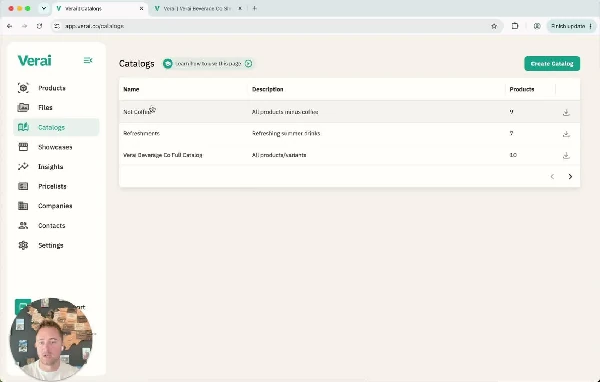
Catalogs let you group products for a purpose — a seasonal lineup, a specific channel, or everything except one category. Build them once and reuse them anywhere you'd normally rebuild a line sheet by hand, including as the basis for a Brand Portal or a price list.
Share your Brand Portal
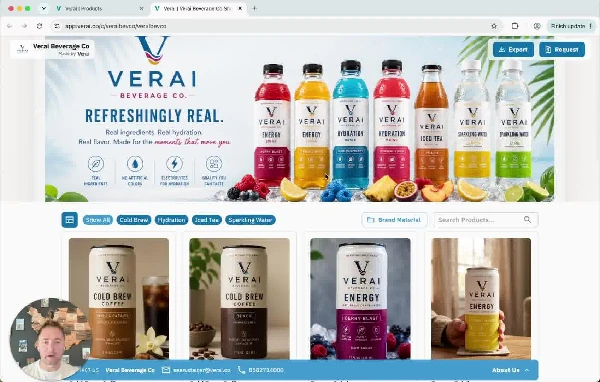
This is the payoff: a branded, buyer-facing page you can send with a single link. It carries your logo, your story, and your live product grid — descriptions, imagery, and both wholesale and MSRP pricing — pulled straight from the product records you built earlier. Buyers can browse, filter by category, and add items straight to a request.
Because it's connected to your product data instead of a static PDF, there's nothing to reissue when a price or a cert changes. Update the product once, and everyone with the link sees the current version.
Manage companies, contacts, and requests
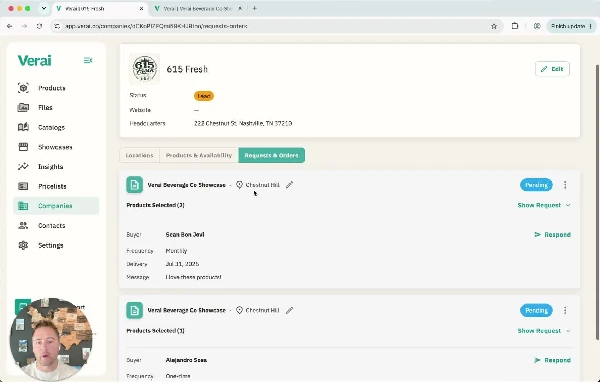
When a buyer engages with your Brand Portal, it shows up here. Companies tracks the businesses you're selling to — locations, status (lead, active, etc.), and the people at each one. Every product request a buyer submits lands in the Requests & Orders tab, with the buyer's name, frequency, delivery date, and any note they left — so following up after a trade show or a buyer meeting is a reply, not a reconstruction.
Track engagement with Insights
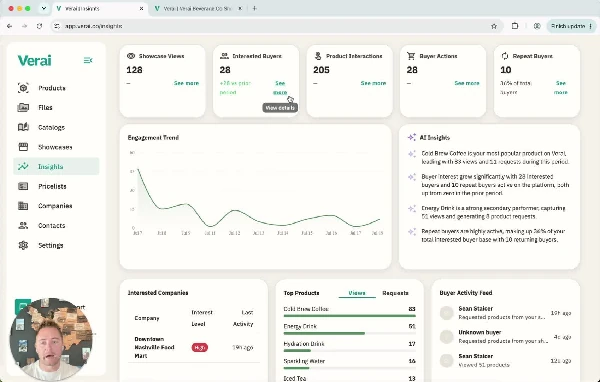
Insights shows you what's actually happening after you send that link: showcase views, interested buyers, product-level interactions, repeat buyers, and an engagement trend over time. AI-generated highlights call out your best-performing products and shifts in buyer interest automatically, so you know where to focus before your next follow-up.
Make it yours in Settings
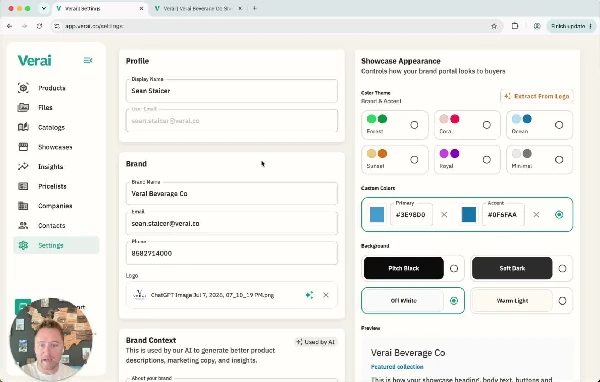
Settings is where your brand's presence comes together: your profile, your brand name, logo, and contact details, and a Brand Context section that feeds Verai's AI so it can write better product descriptions and marketing copy in your voice. Showcase Appearance controls exactly how your Brand Portal looks to buyers — color theme, background, and whether to require an email before someone can view it.
You're ready to start
A quick recap of the path from an empty account to a shared Brand Portal: add your products (import them or enter them one at a time), fill out each product record with descriptions, photos, and any certifications, group products into catalogs for the audiences you sell to, turn a catalog into a Brand Portal and share the link, then respond to requests and check Insights to see what's resonating. Ready to get going? Start building your first Brand Portal at verai.co.
Related guides
Dig deeper into each area: Products, Catalogs, Pricelists, Showcases, Companies, Contacts, and Settings.
Questions? Use the Help & Support button in the bottom-left corner of Verai to send us a message — we'll get back to you as soon as possible.